
A visual walkthrough refreshed from the live demo on November 21, 2026. Every screenshot uses a 1440 × 900 viewport with fictional accounts and content. Expand View dark mode to compare appearances, or select an image to open it at full size. The shared demo is read-only; your own installation supports the actions described here.
Sign in and find your way around
Use Login with your community account. New members can use Sign Up when registration is available; confirmation and password-reset email depend on your administrator’s email configuration.
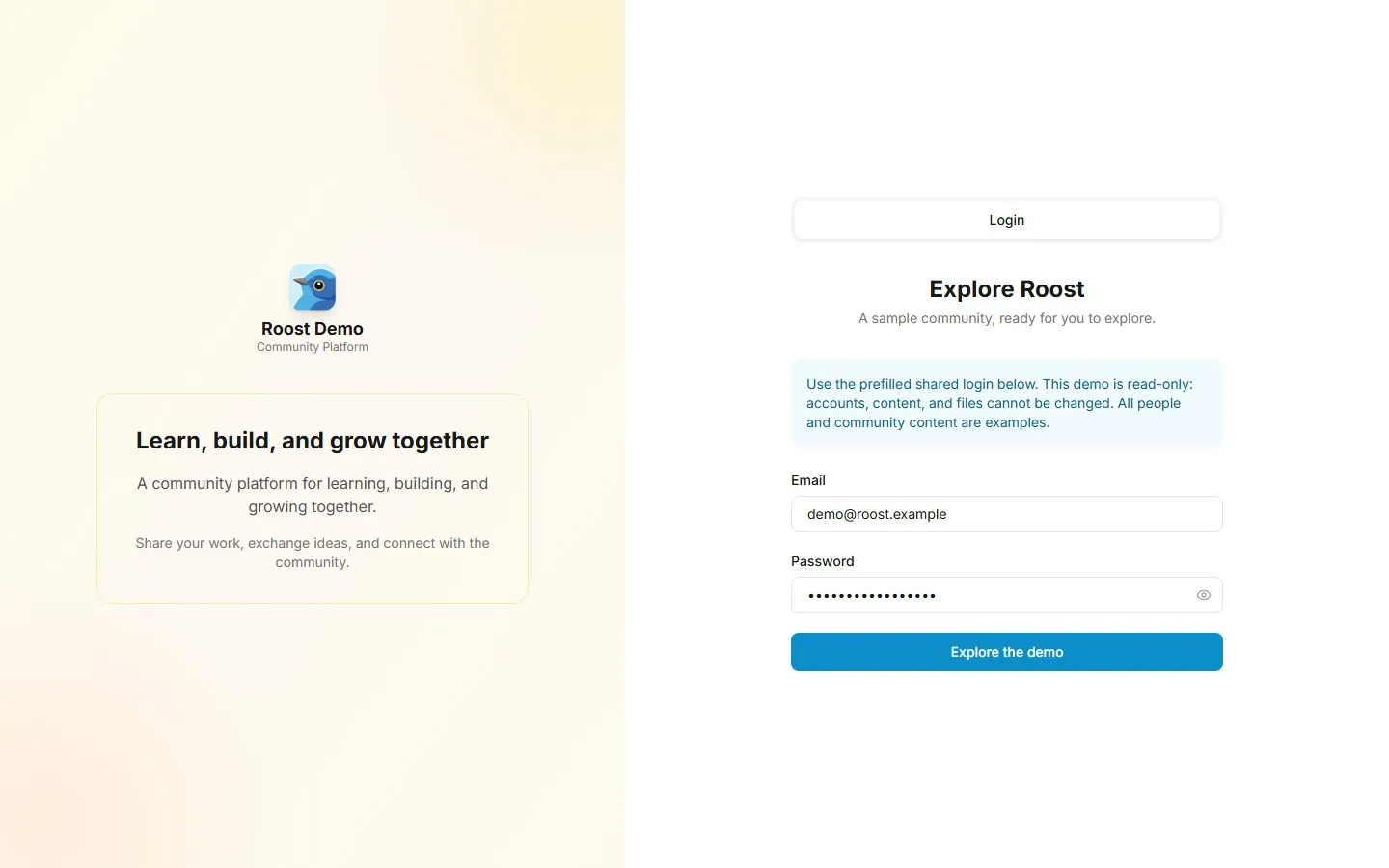
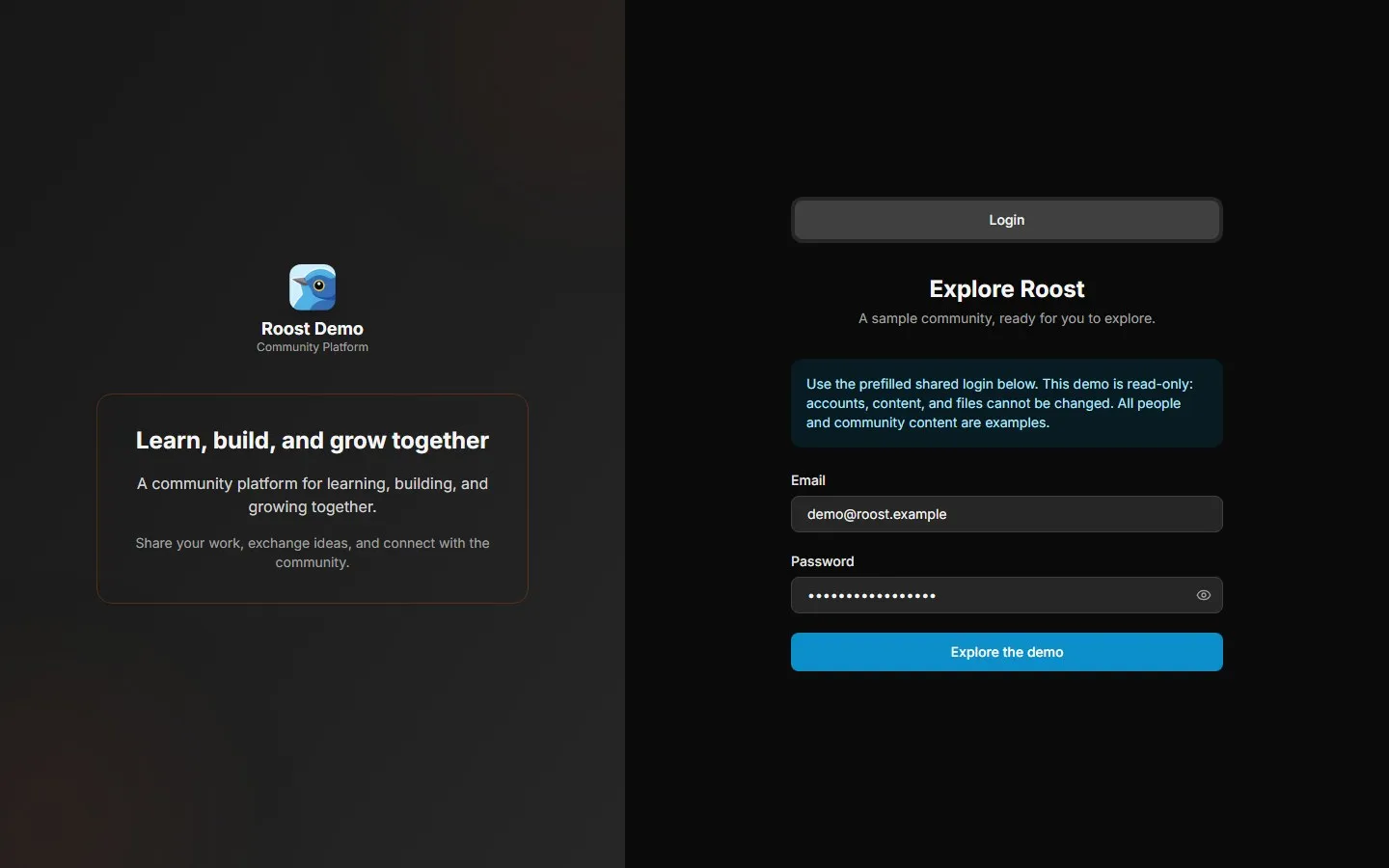
View dark mode: sign in
The sidebar takes you to the feed, classrooms, members, messages, and calendar. On a phone, open the navigation menu to find the same destinations. Some optional destinations depend on the community’s feature settings and your membership.
Join the conversation
On Home, choose Write something… to create a post. Add a title if useful, write your message, and publish. Open a post to read it in context, react, or add a comment. Pinned posts keep important community information near the top.
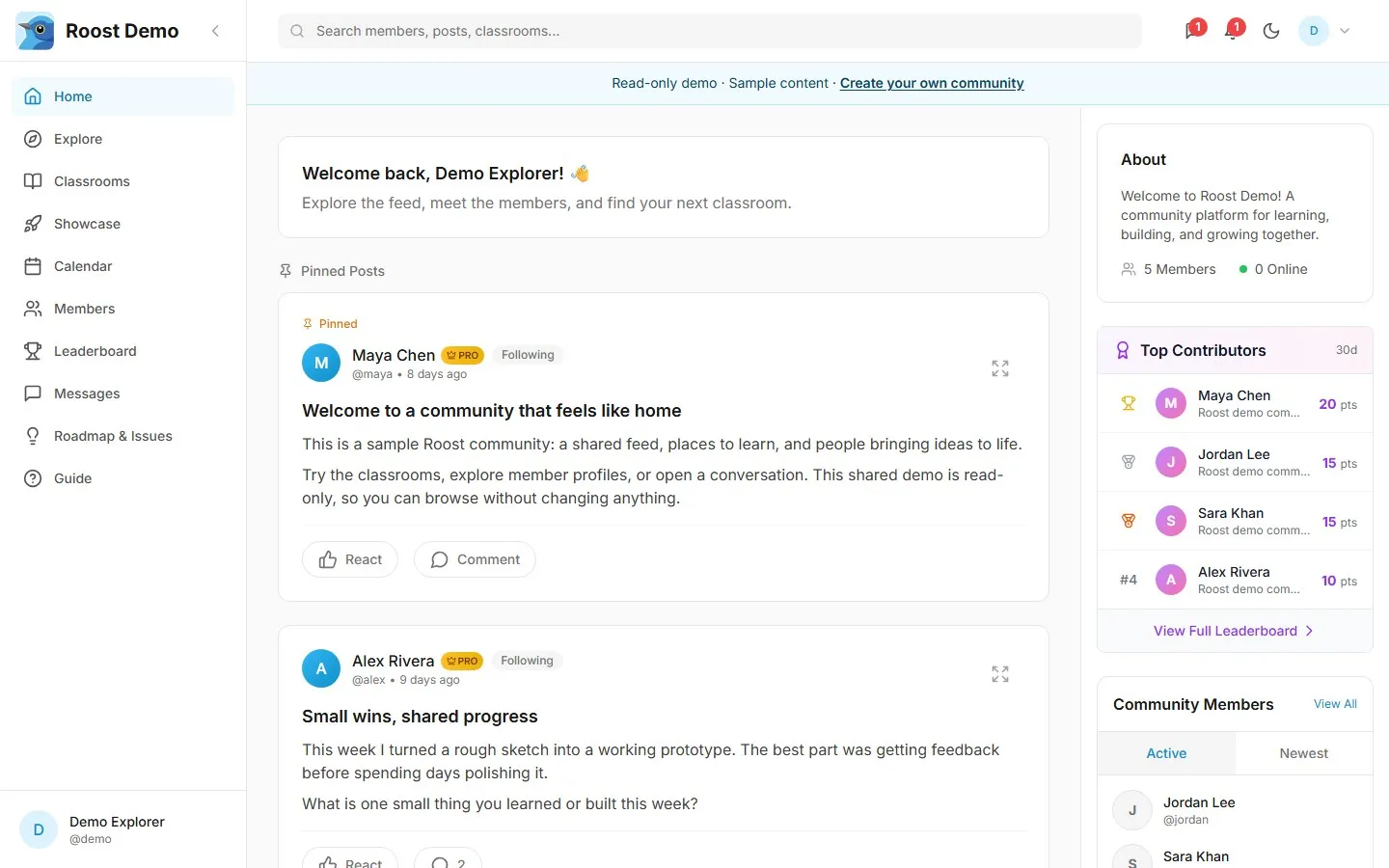
View dark mode: community feed
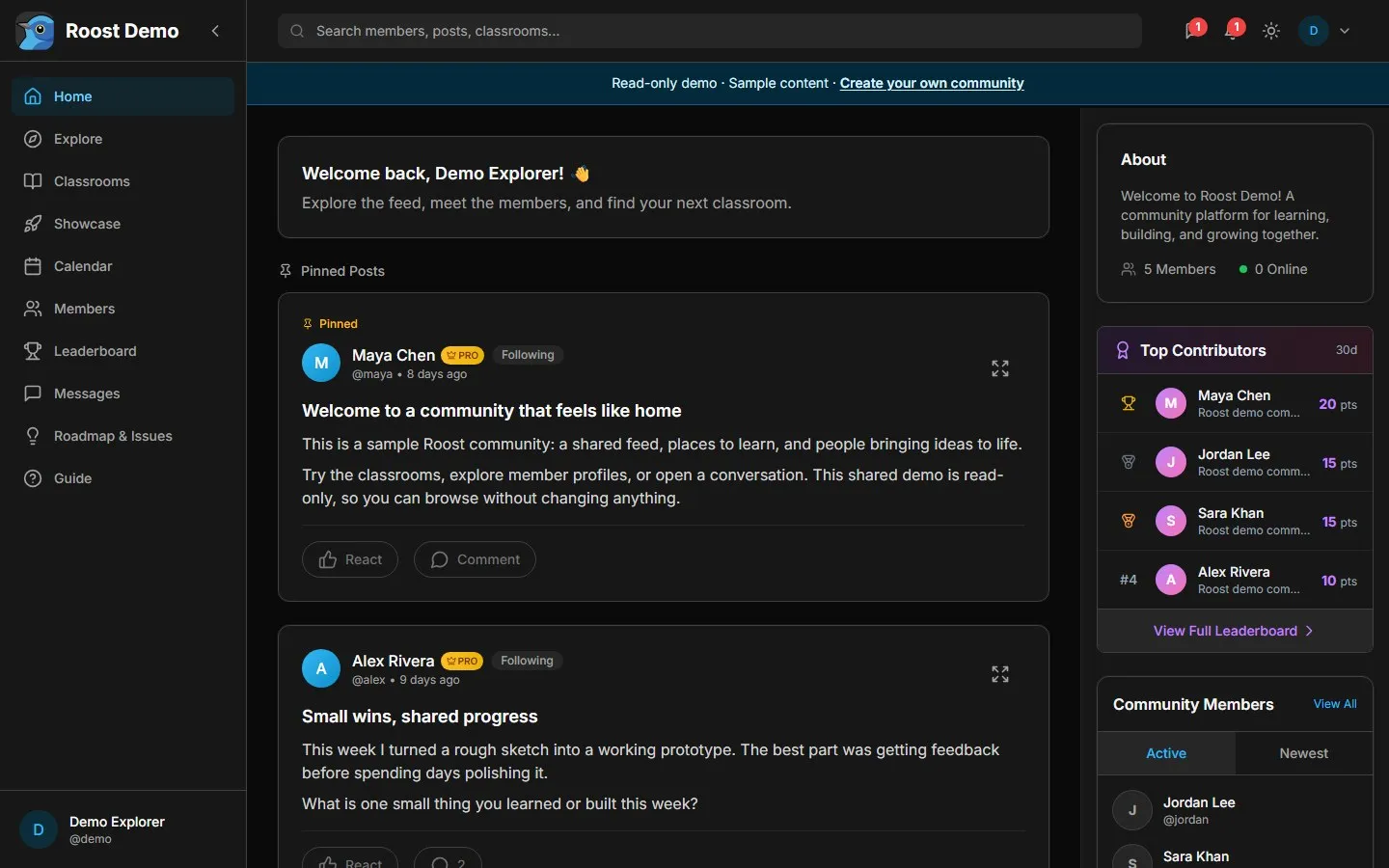
Follow people whose updates interest you. The feed’s topic and sorting controls help you find relevant conversations.
Learn in classrooms
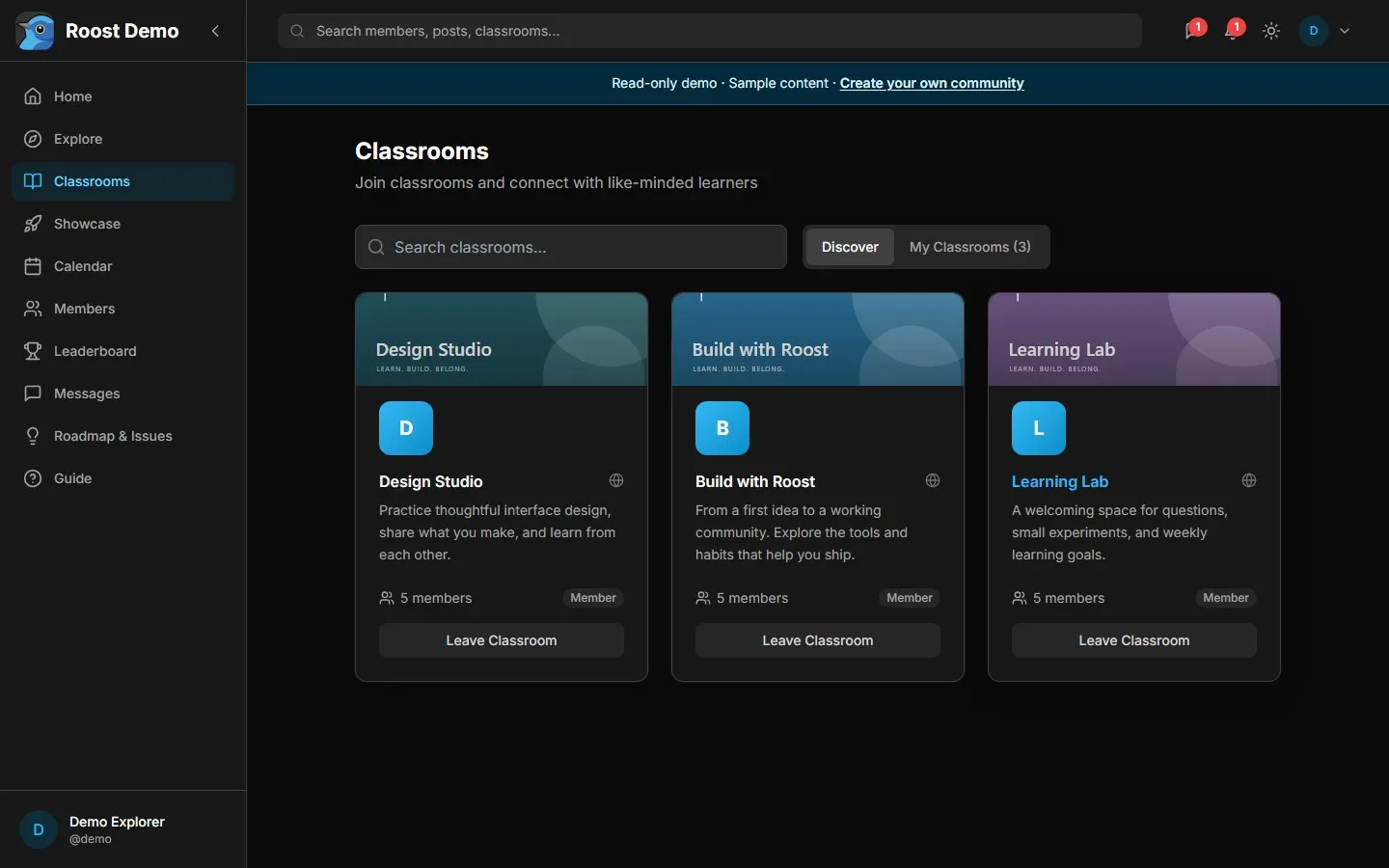
Open Classrooms to discover learning spaces or return to My Classrooms. A card shows the classroom description, membership count, and your membership state. Public and private classrooms have different access rules.
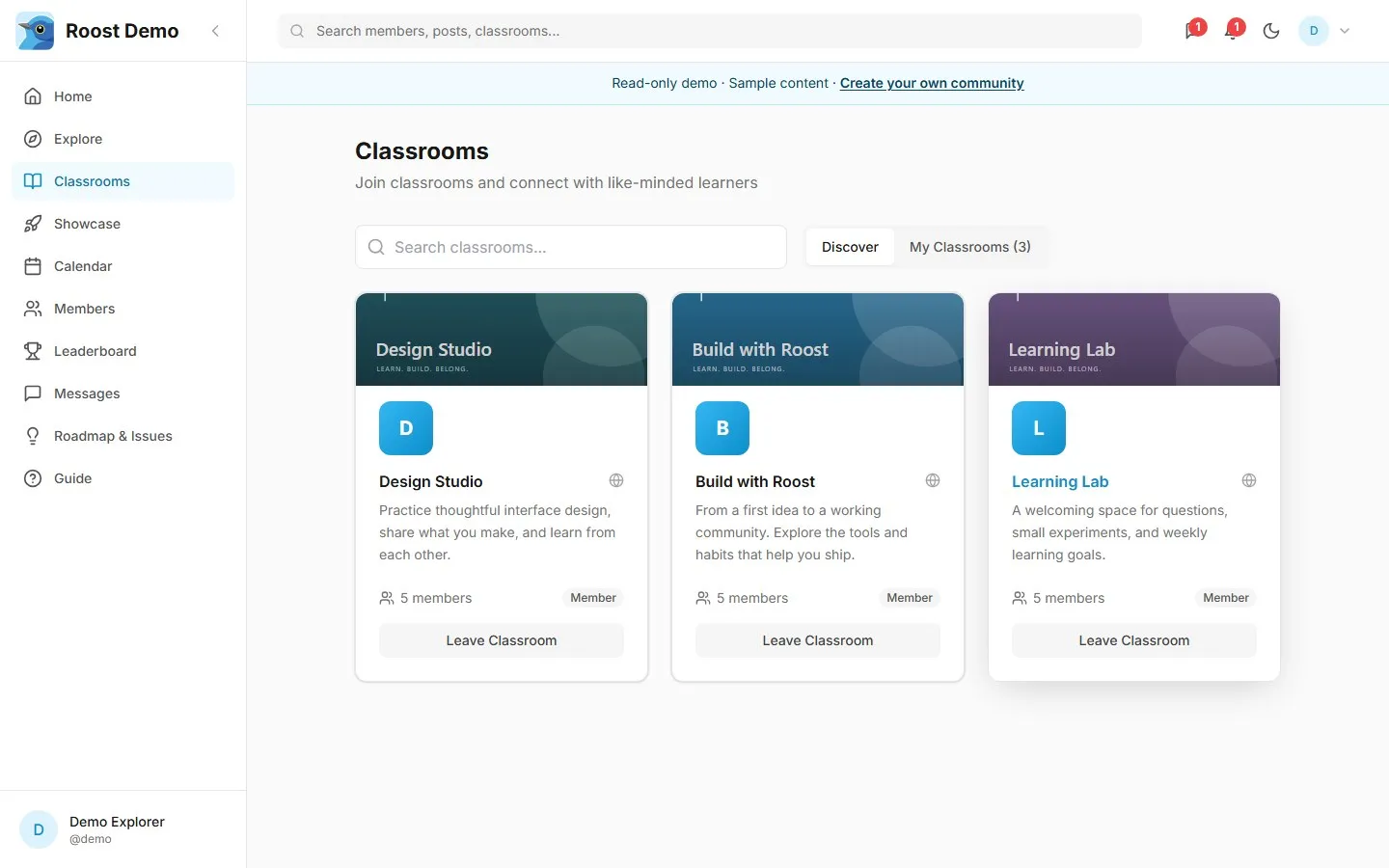
View dark mode: classrooms
Open a classroom, choose a module, then select a lesson. Lessons can combine an embedded video, progress controls, and a discussion. Use Mark Complete when you finish; use Assets in the module to find supplied learning materials.
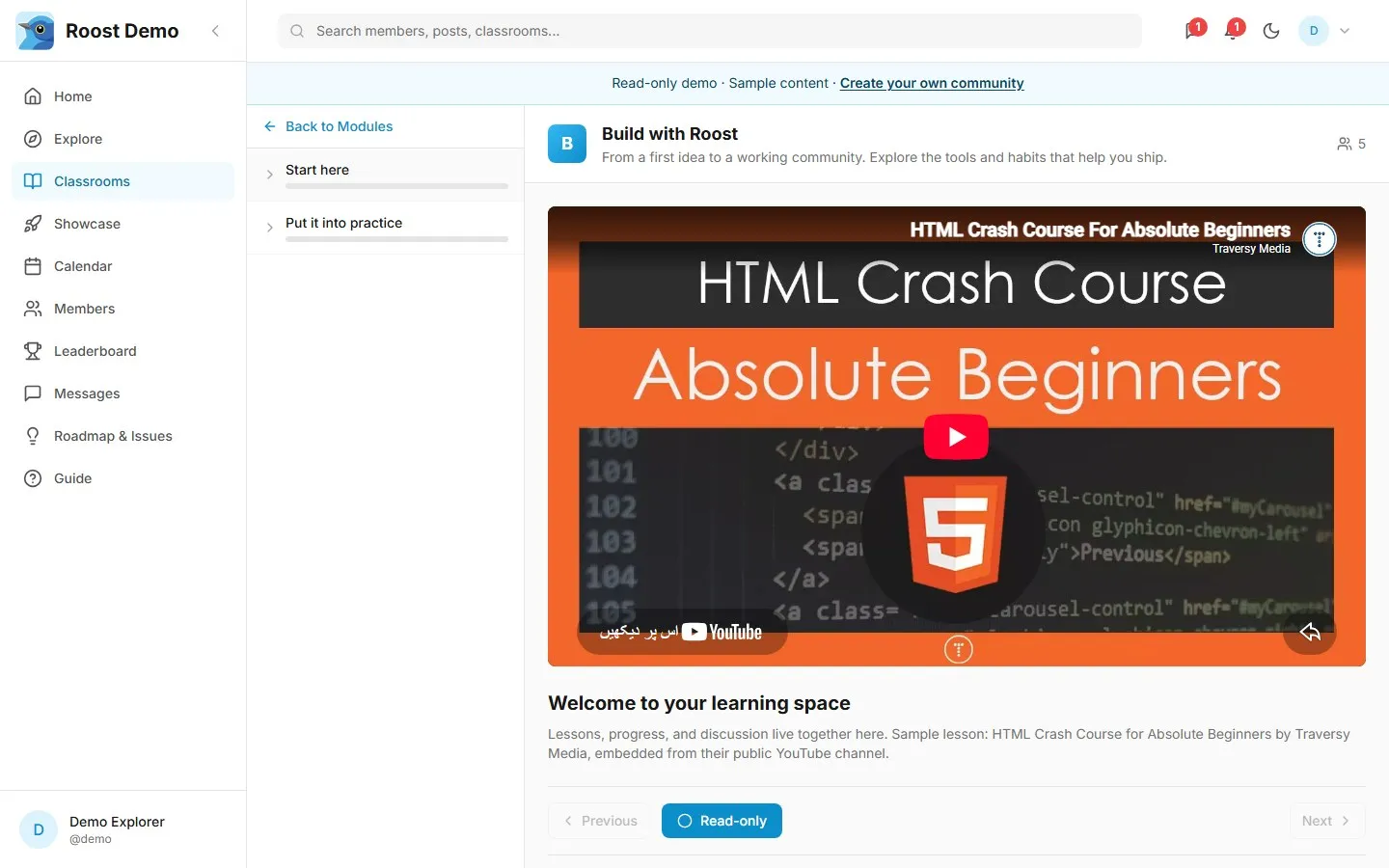
View dark mode: lessons
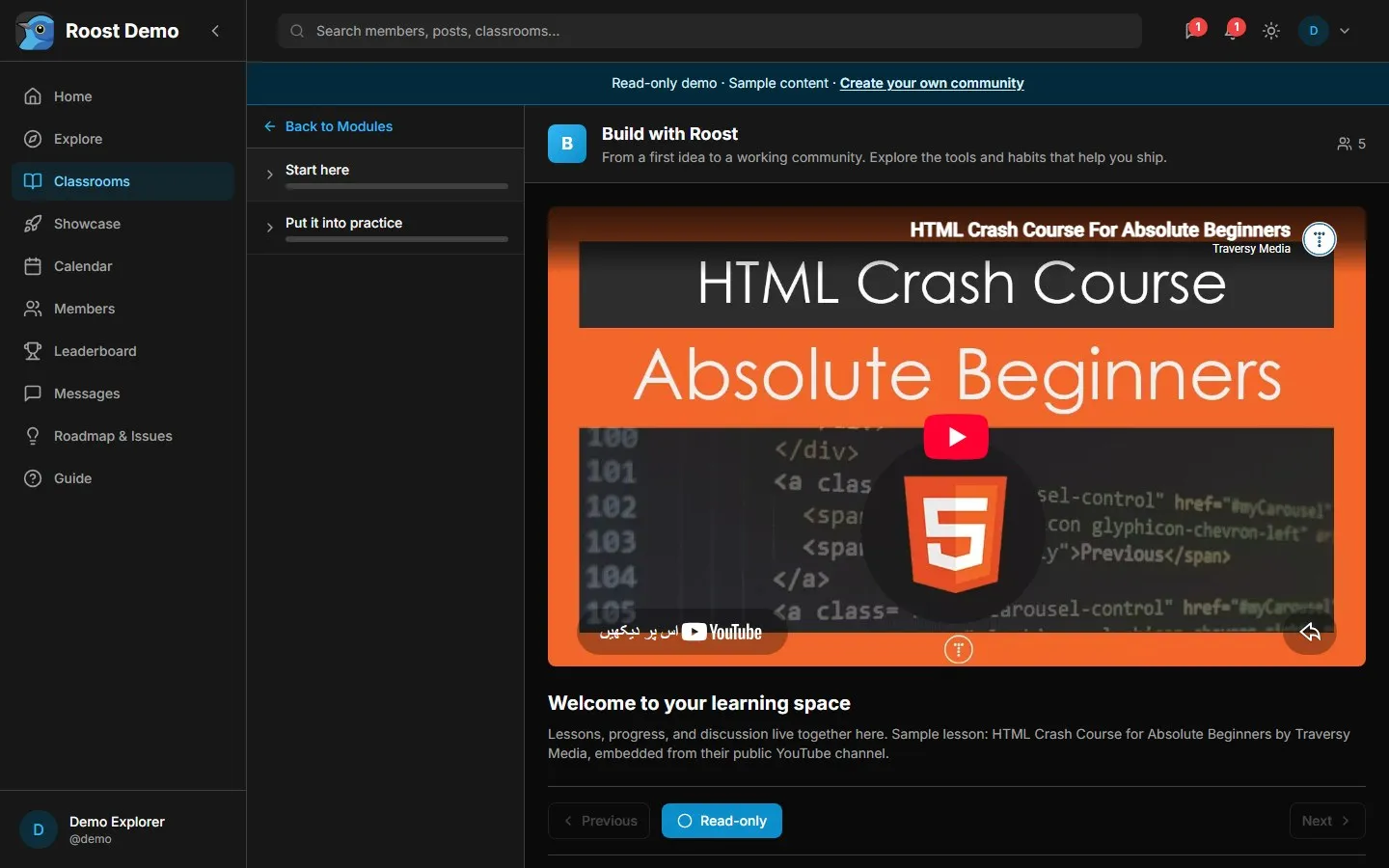
The sample video is HTML Crash Course for Absolute Beginners by Traversy Media, embedded from their public YouTube channel.
Meet members and send a message
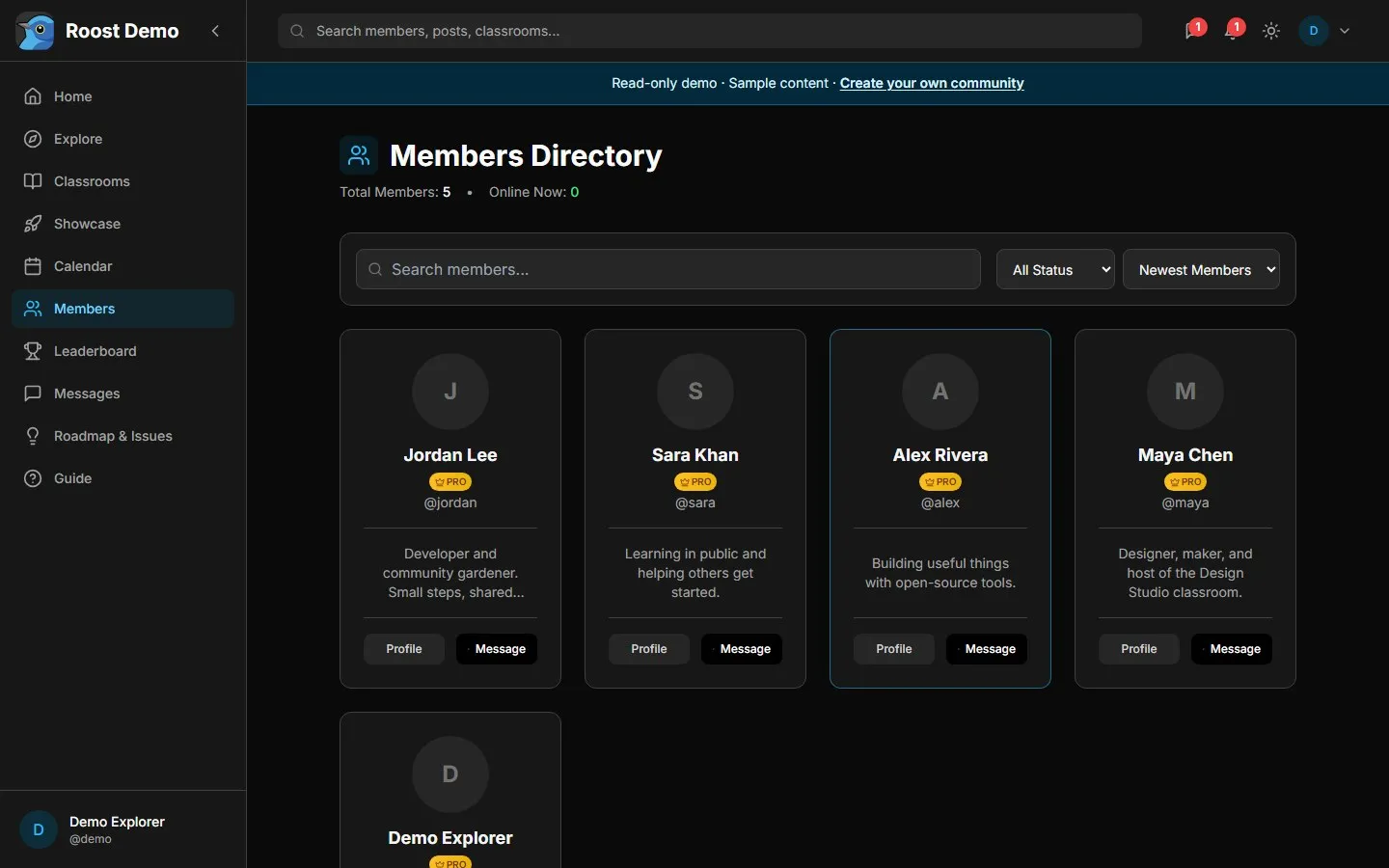
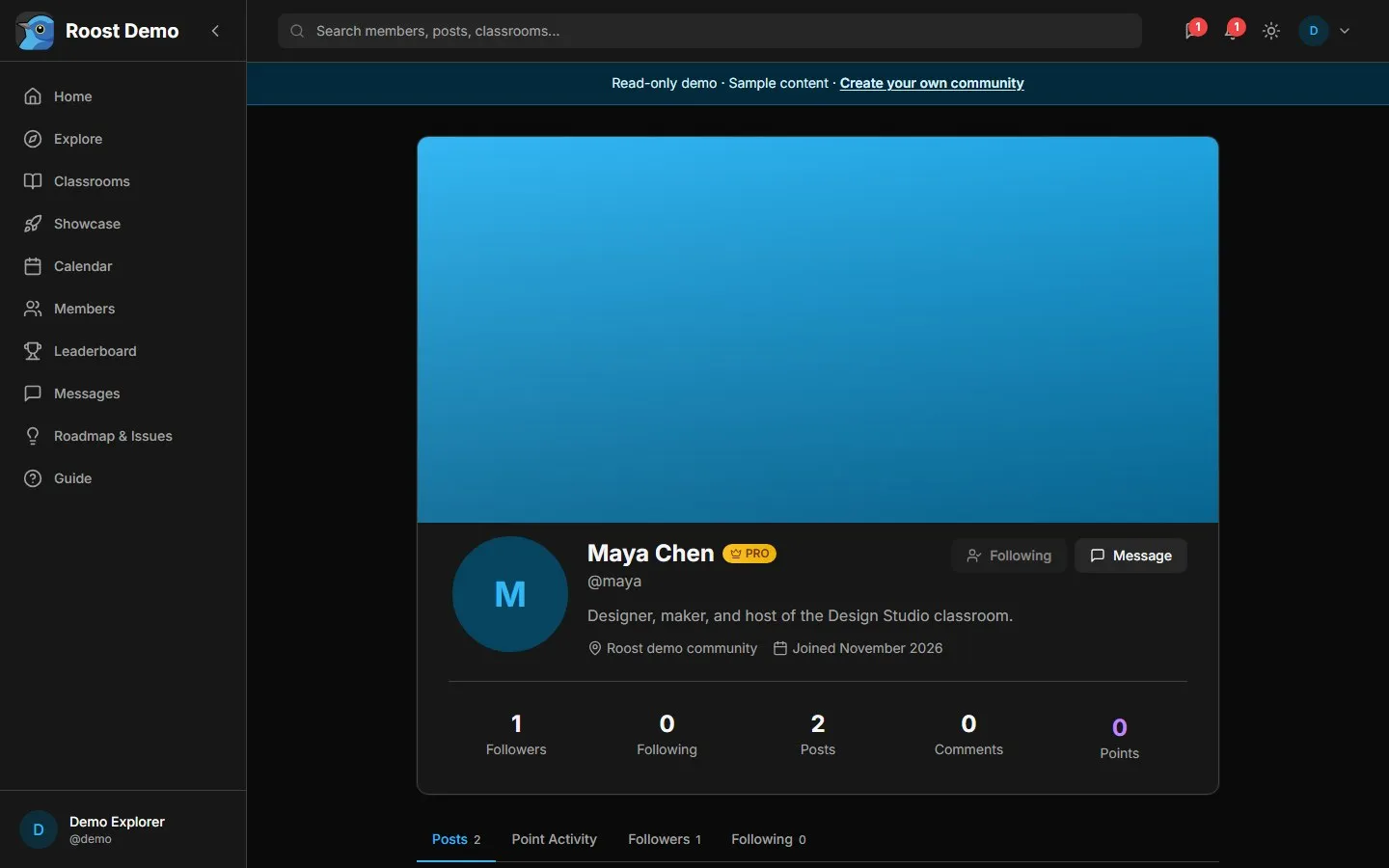
Search Members for people, read their biographies, and open a profile or Message link. In Messages, choose a conversation or start a new one. Write a message, attach supported images when needed, and use the send button or Ctrl+Enter.
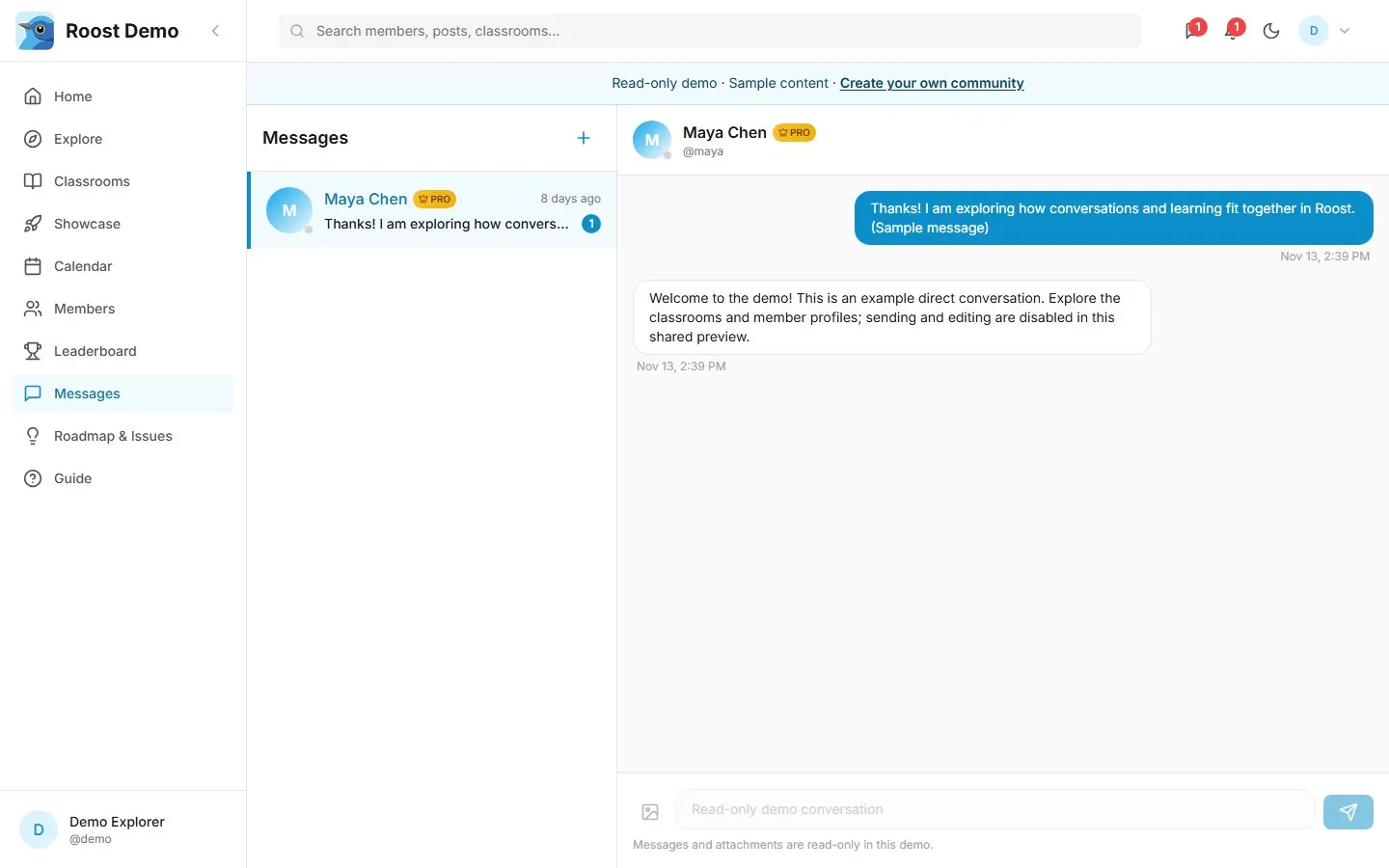
View dark mode: messages
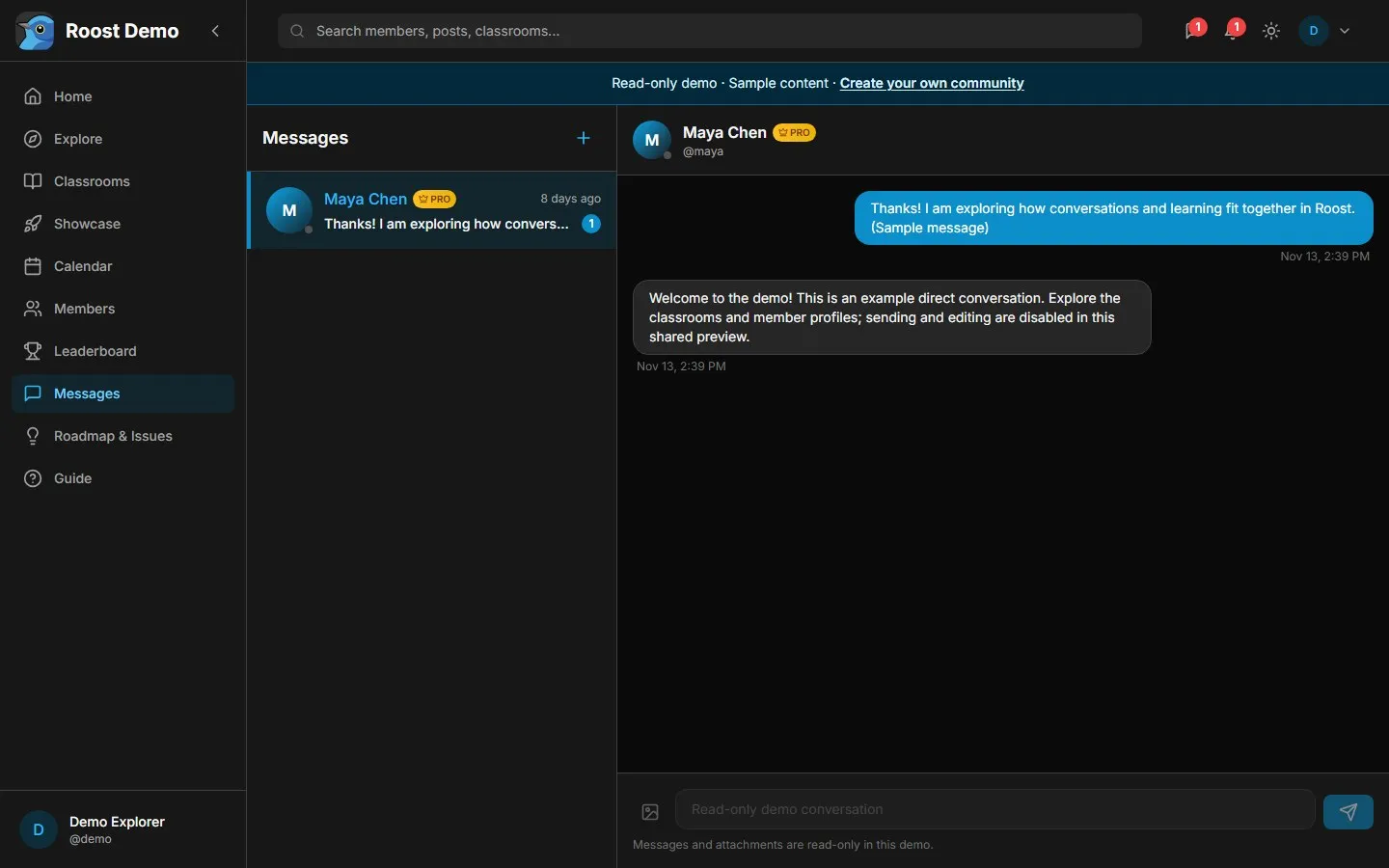
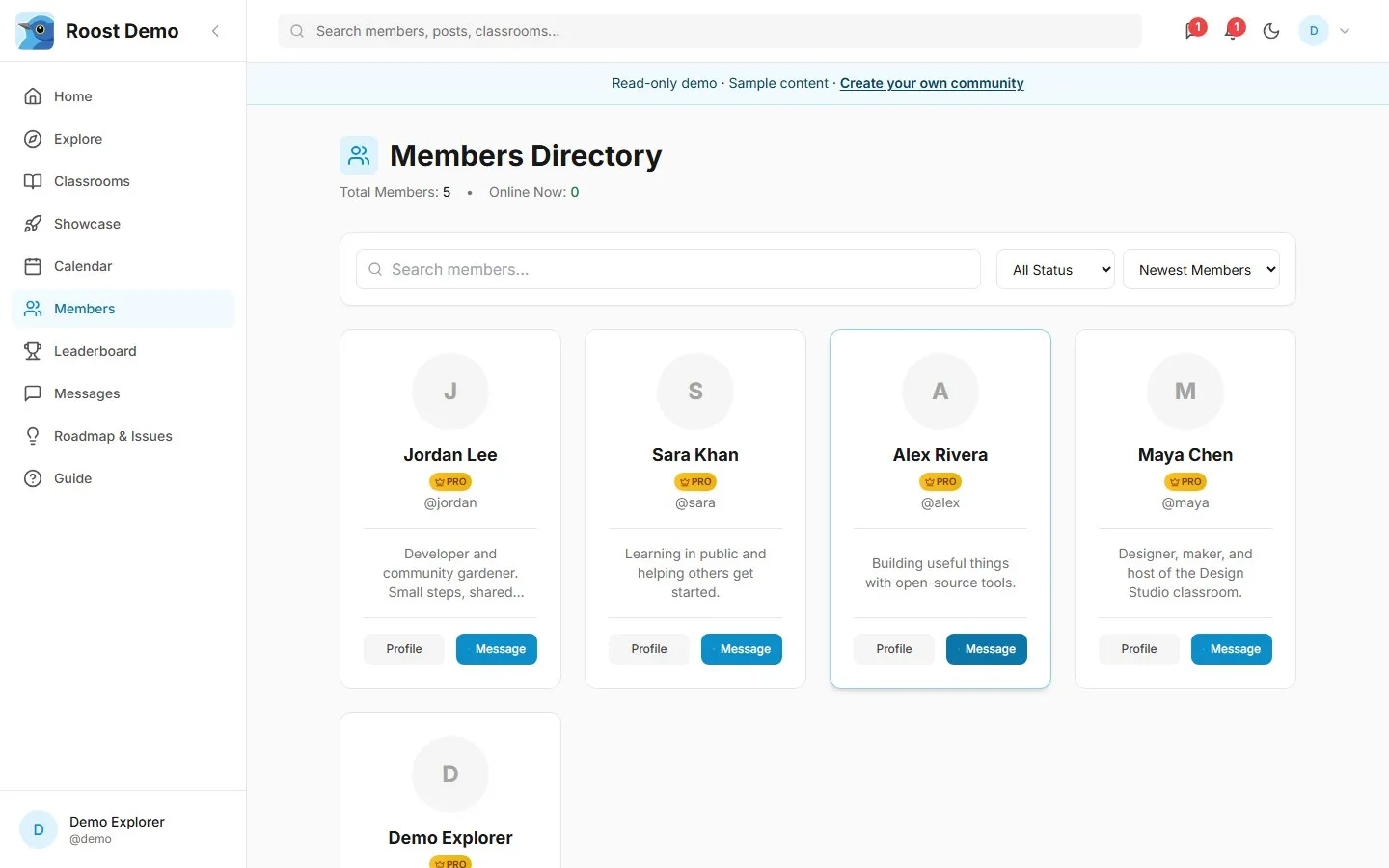
View dark mode: members
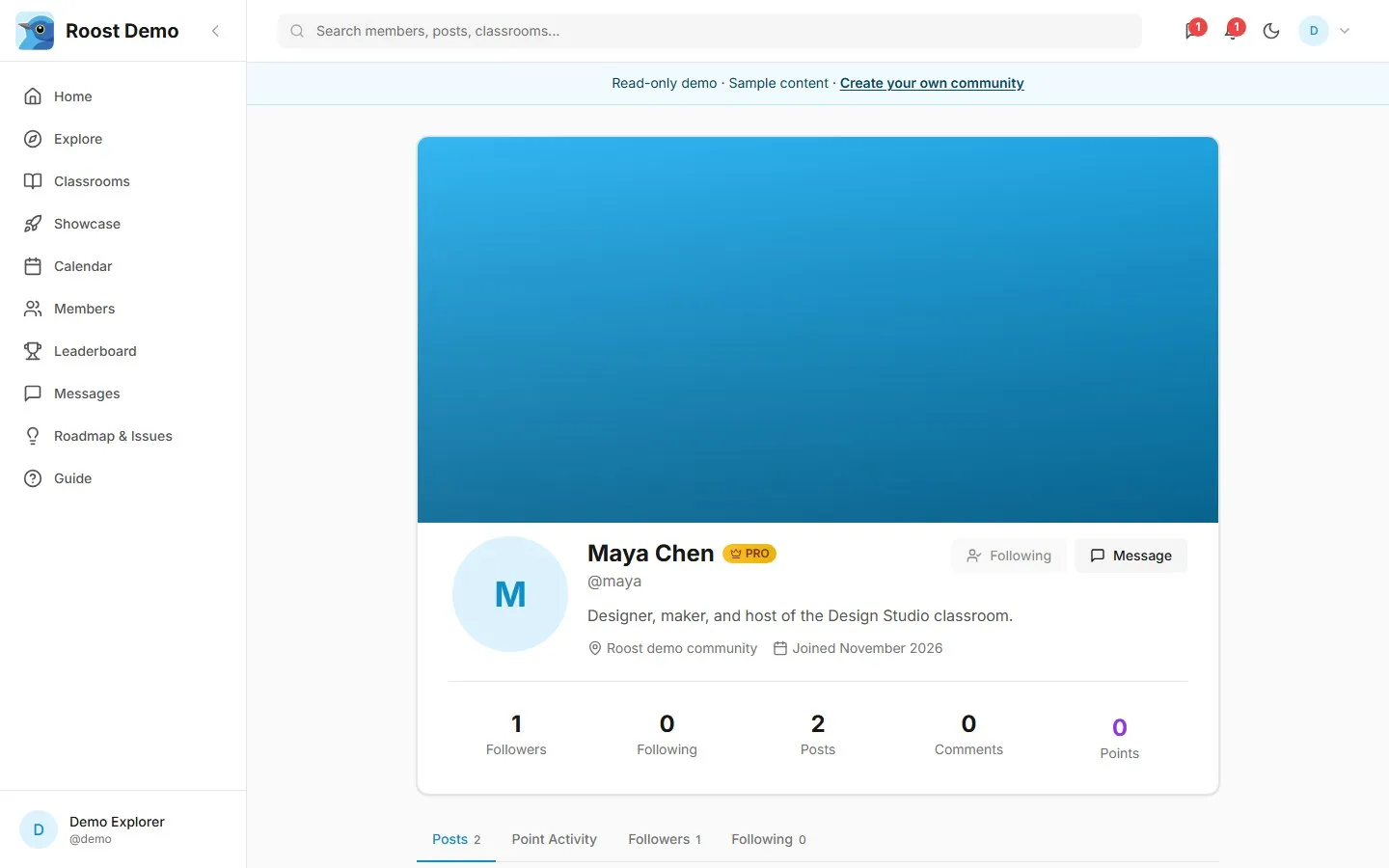
View dark mode: member profile
Find events and RSVP
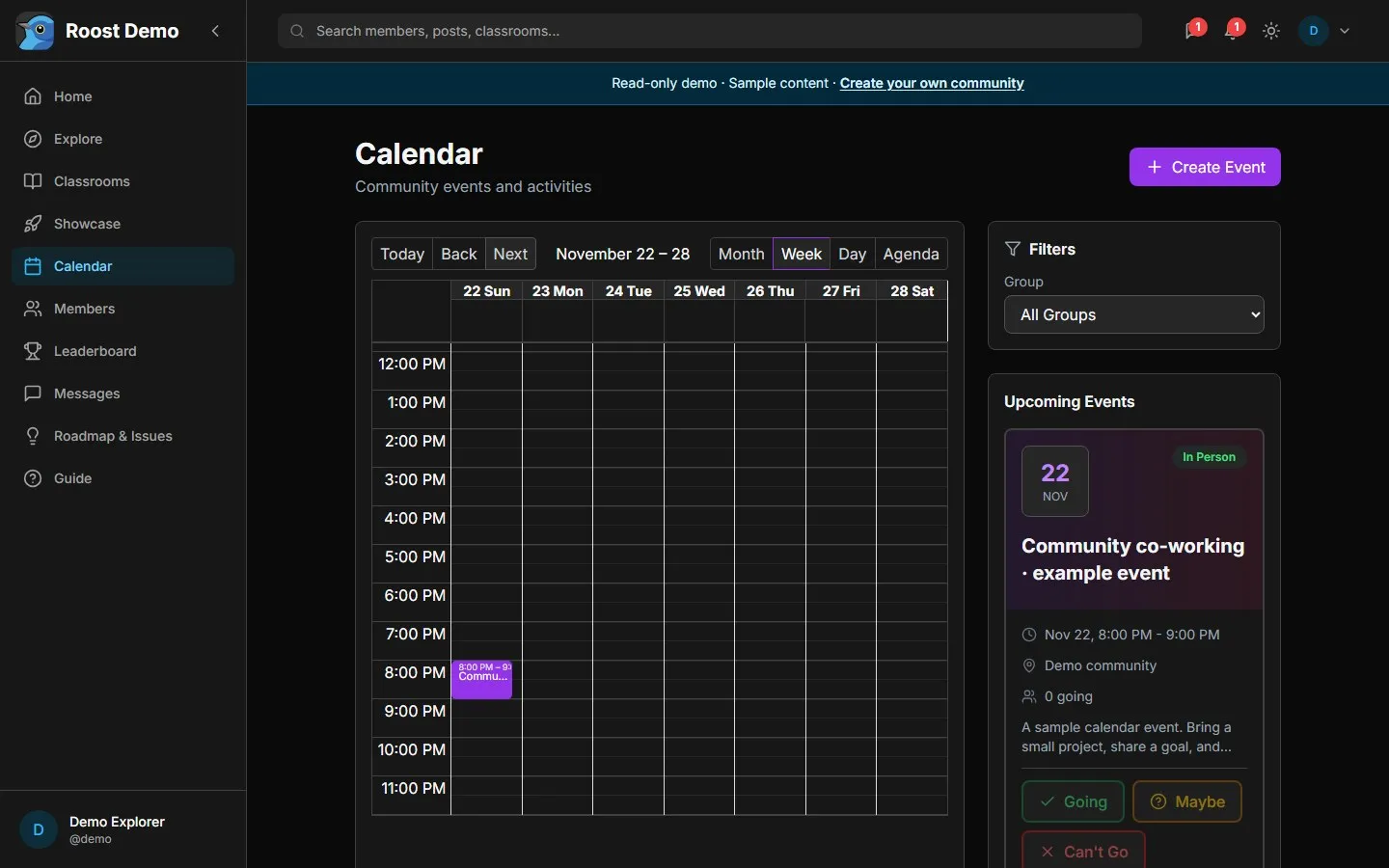
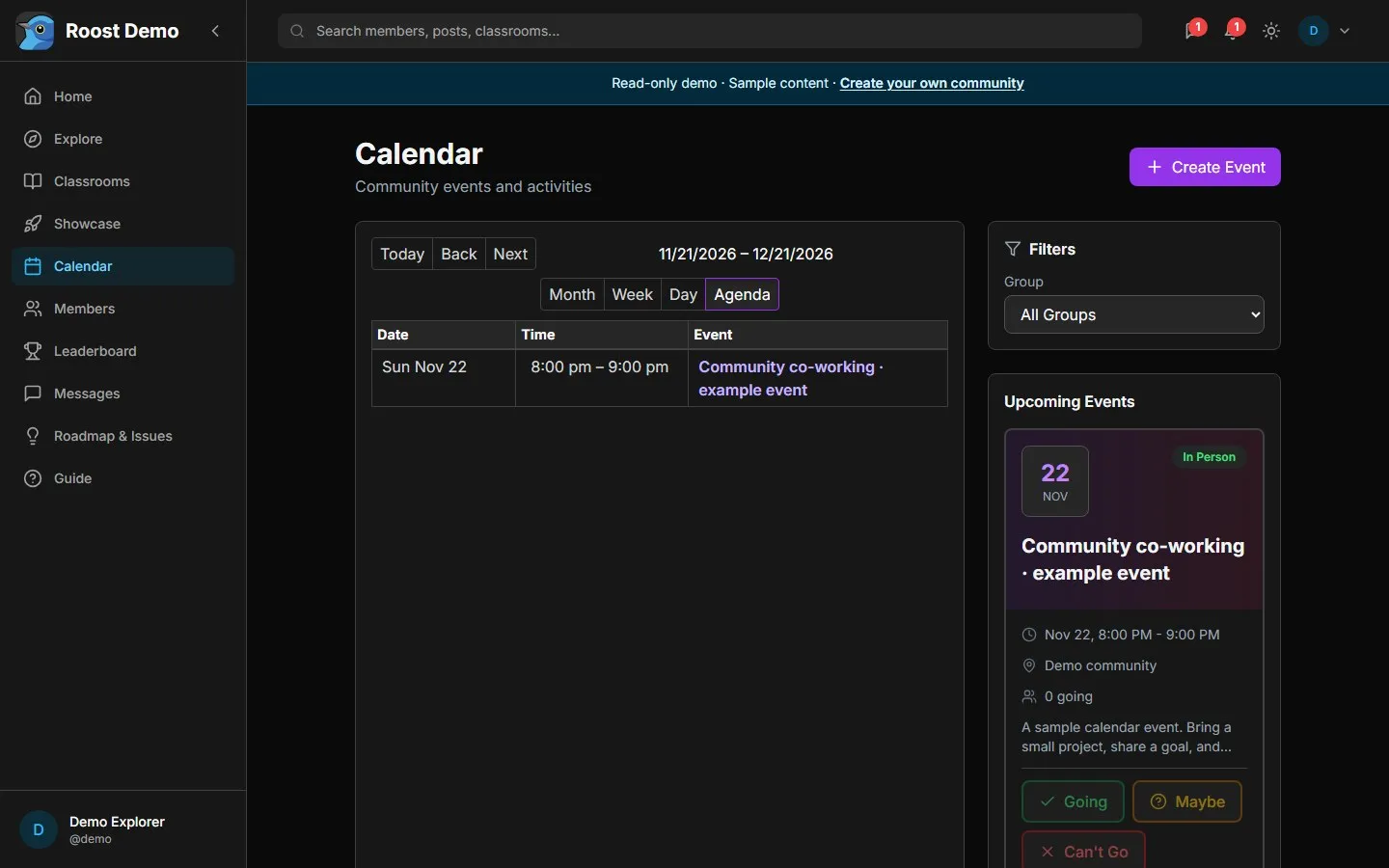
The Calendar offers Month, Week, Day, and Agenda views. Use Today, Back, and Next to change the visible dates. Group filters narrow the schedule. Select an event for its details; choose Going, Maybe, or Can’t Go to update your RSVP.
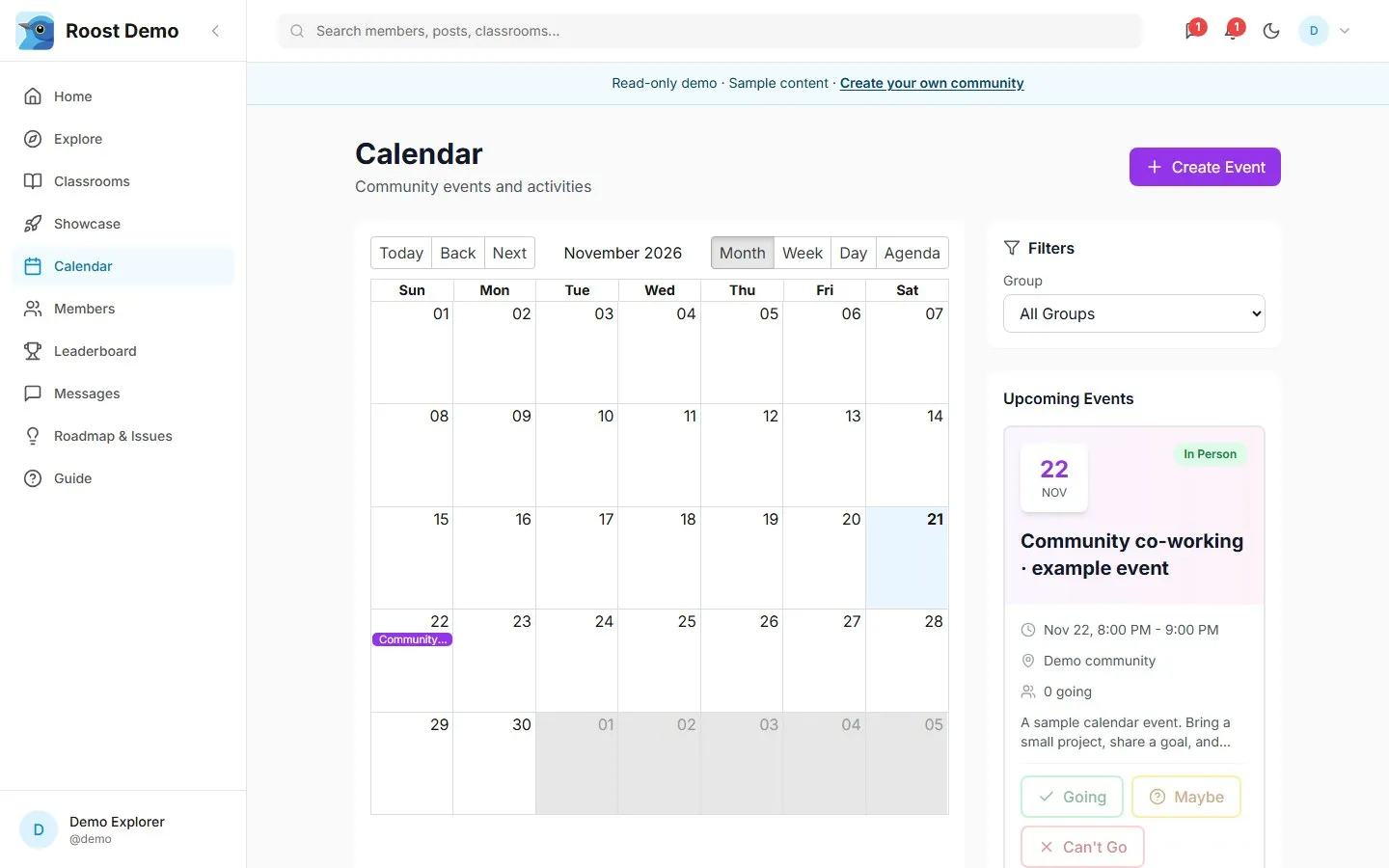
View dark mode: month calendar
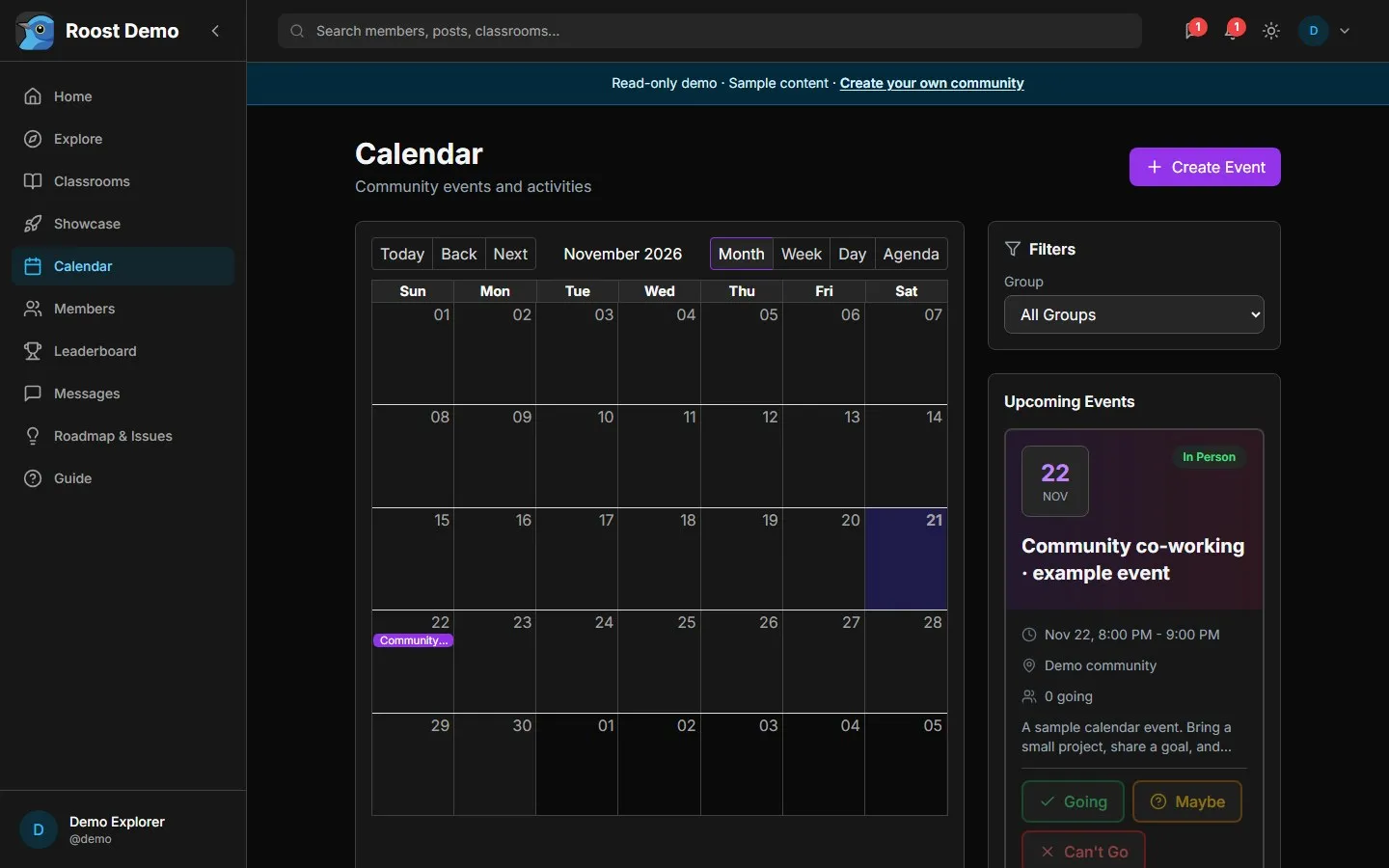
Week keeps day labels visible, while Agenda presents dates, times, and event names in a compact table. Both views adapt to smaller screens. The desktop captures below show the refreshed upcoming sample event; the demo keeps its example dates current automatically.
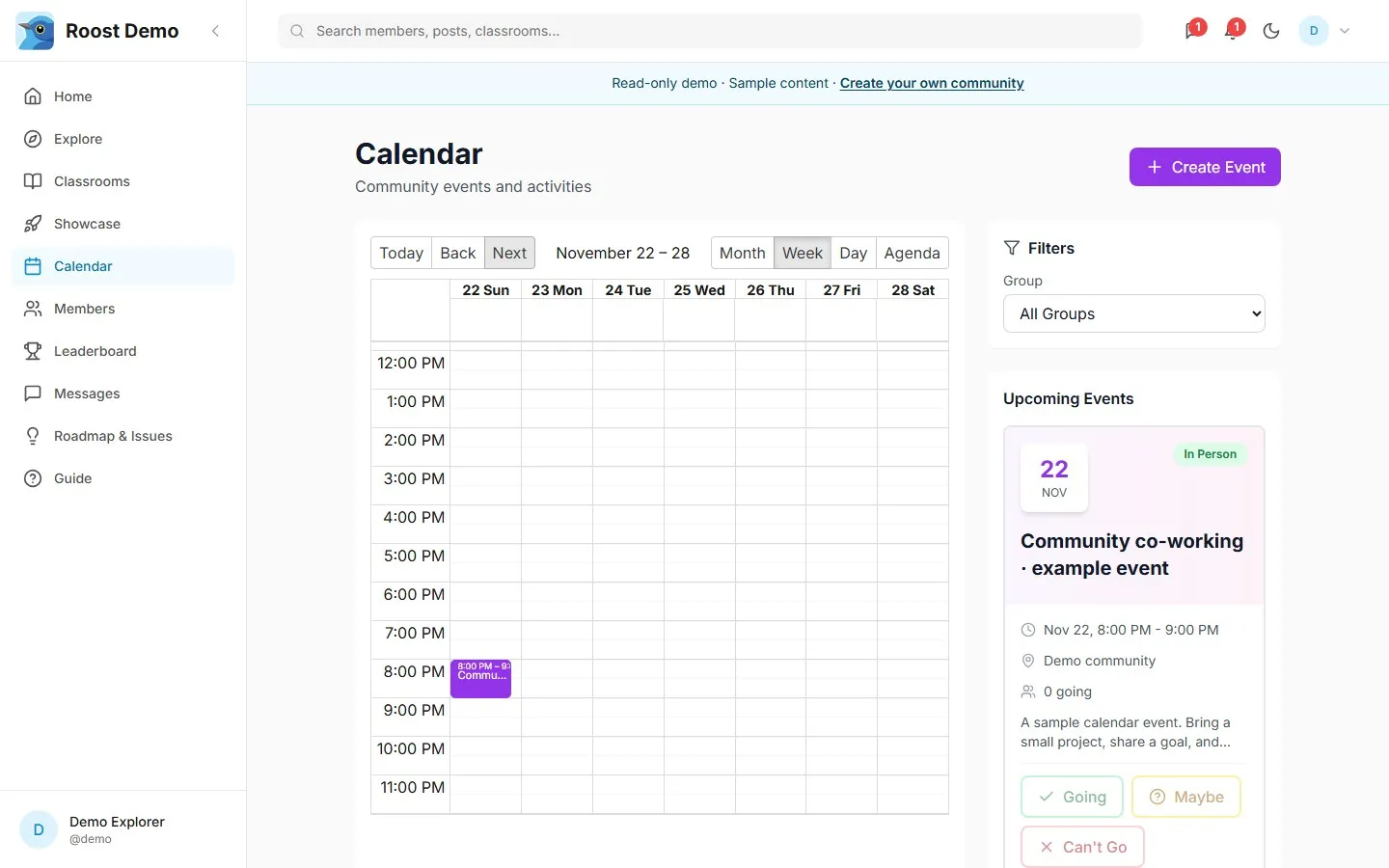
View dark mode: week calendar
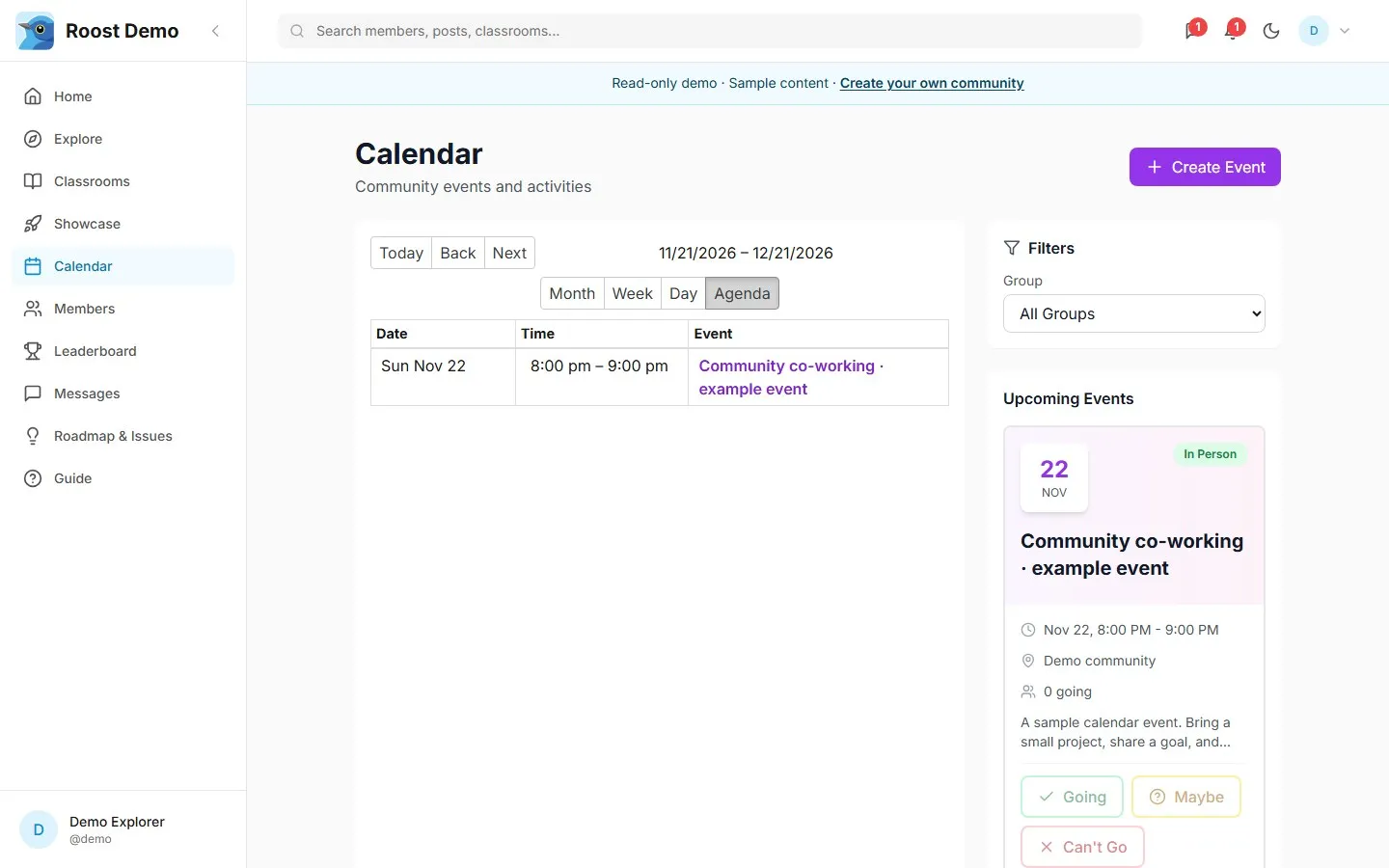
View dark mode: calendar agenda
Share work and suggest improvements
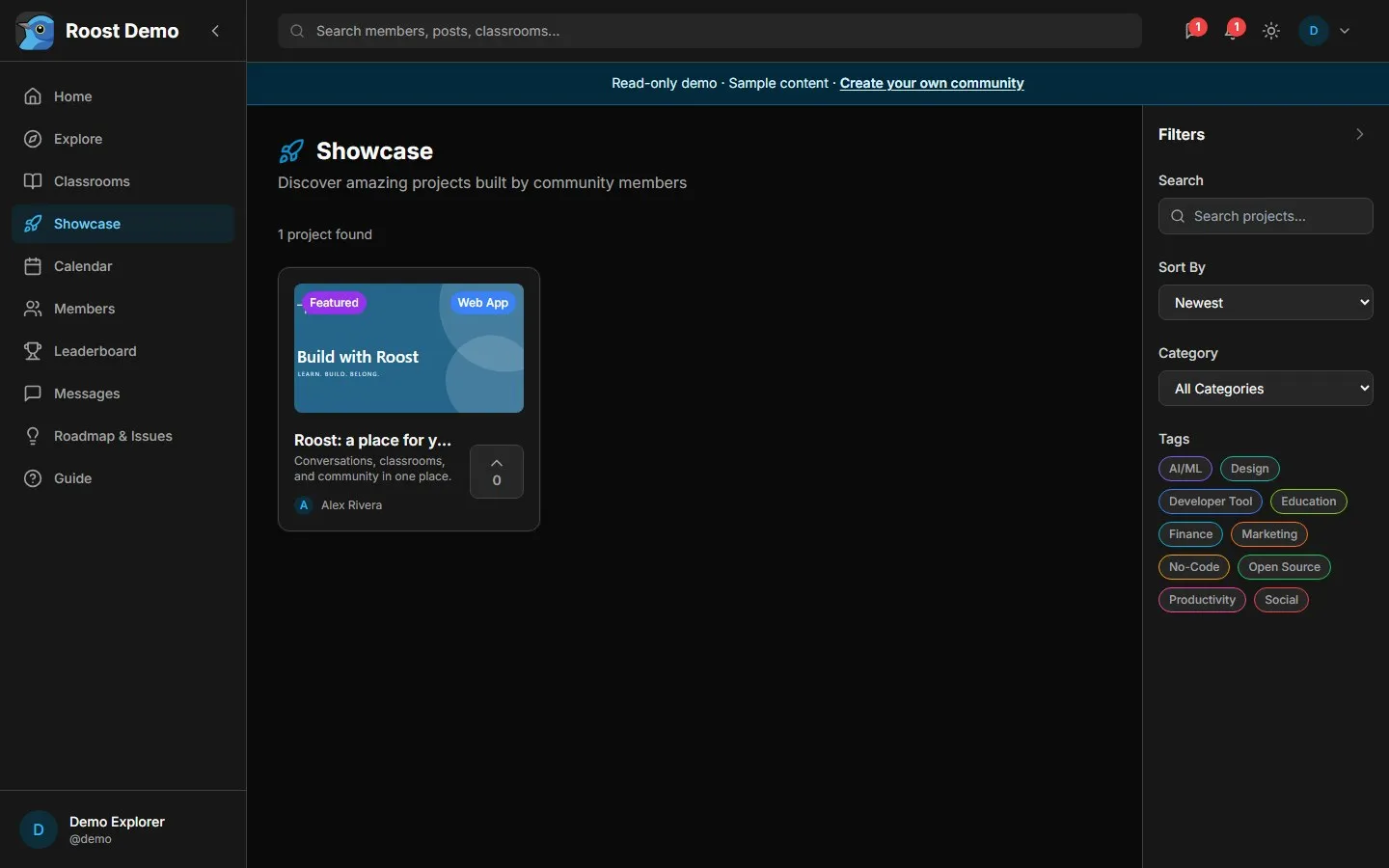
Use Showcase to discover member projects and submit your own. Submissions may need approval before appearing publicly. Open a project to view its overview, reviews, and website link.
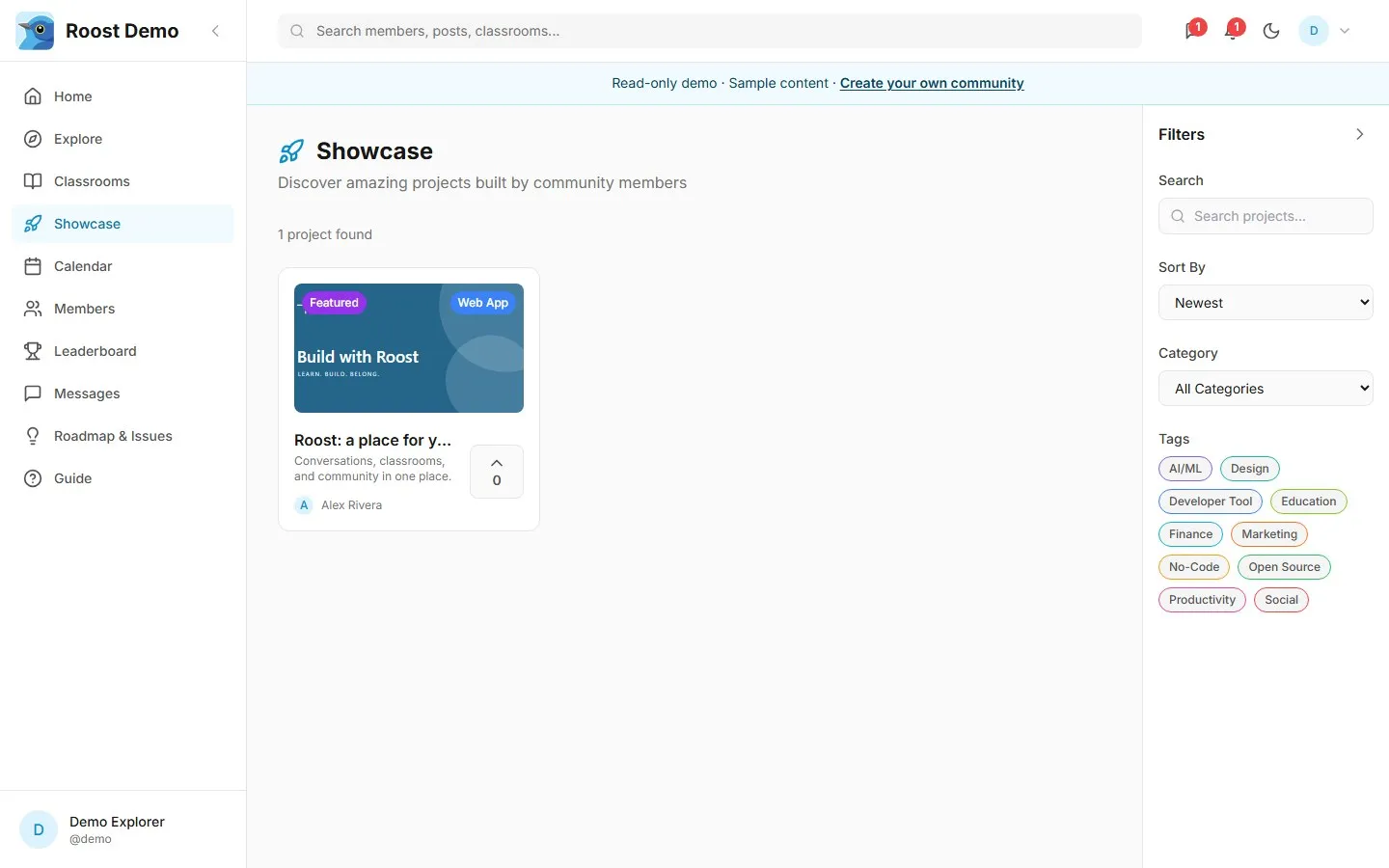
View dark mode: showcases
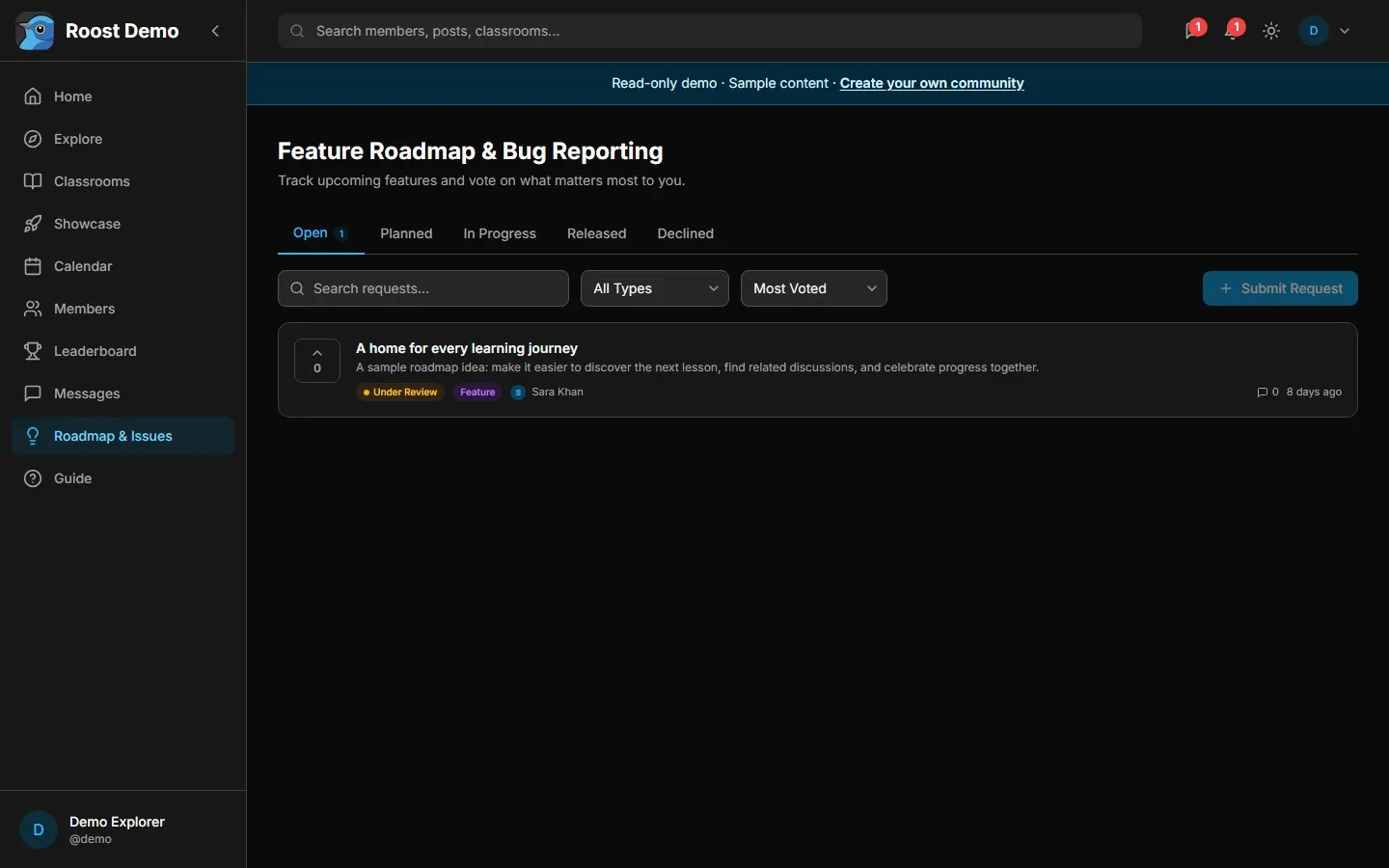
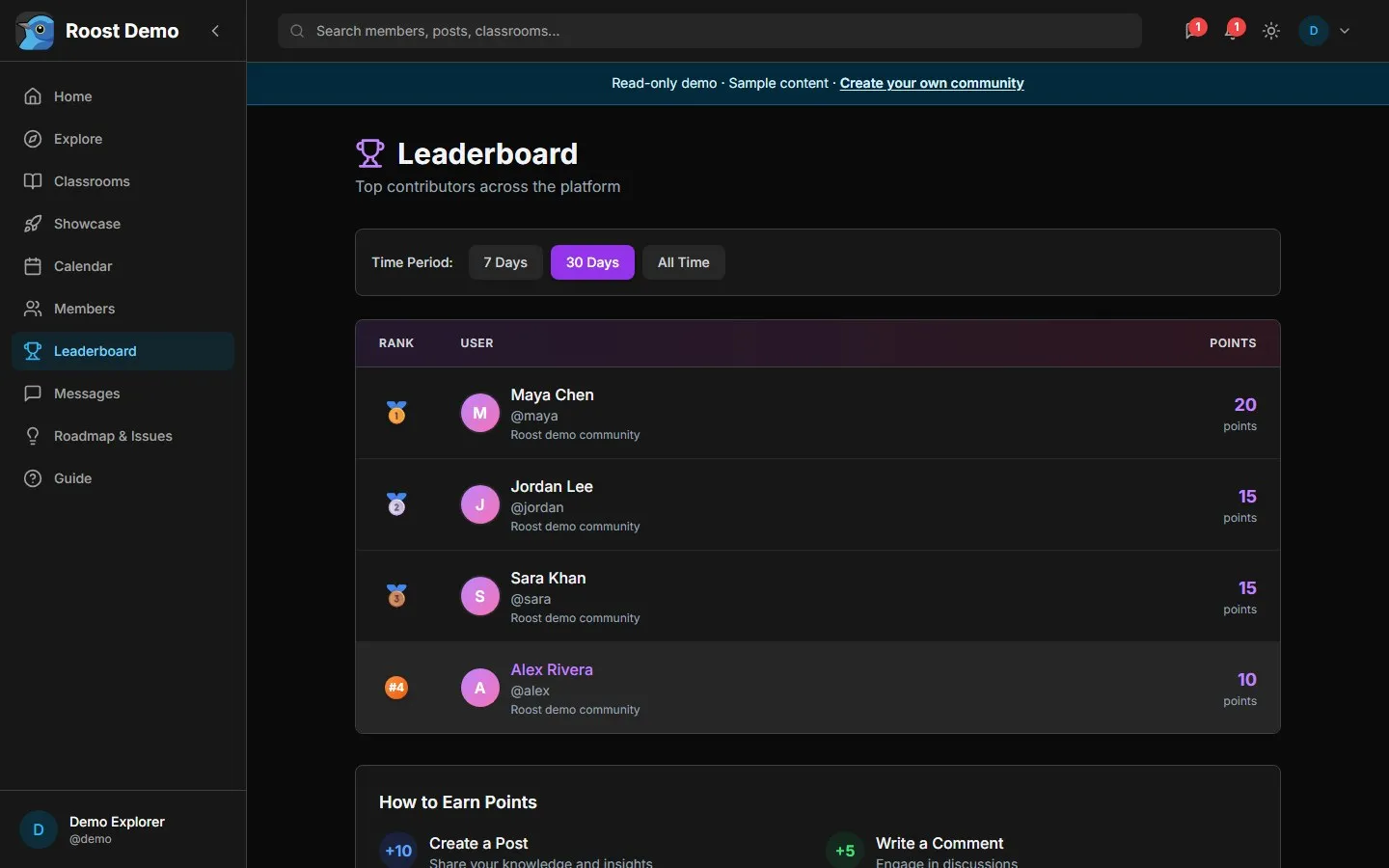
Use Roadmap & Issues for feature ideas, improvements, and bug reports. Search before submitting, vote on useful requests, and check their status. Leaderboard highlights community contributions over the selected time period.
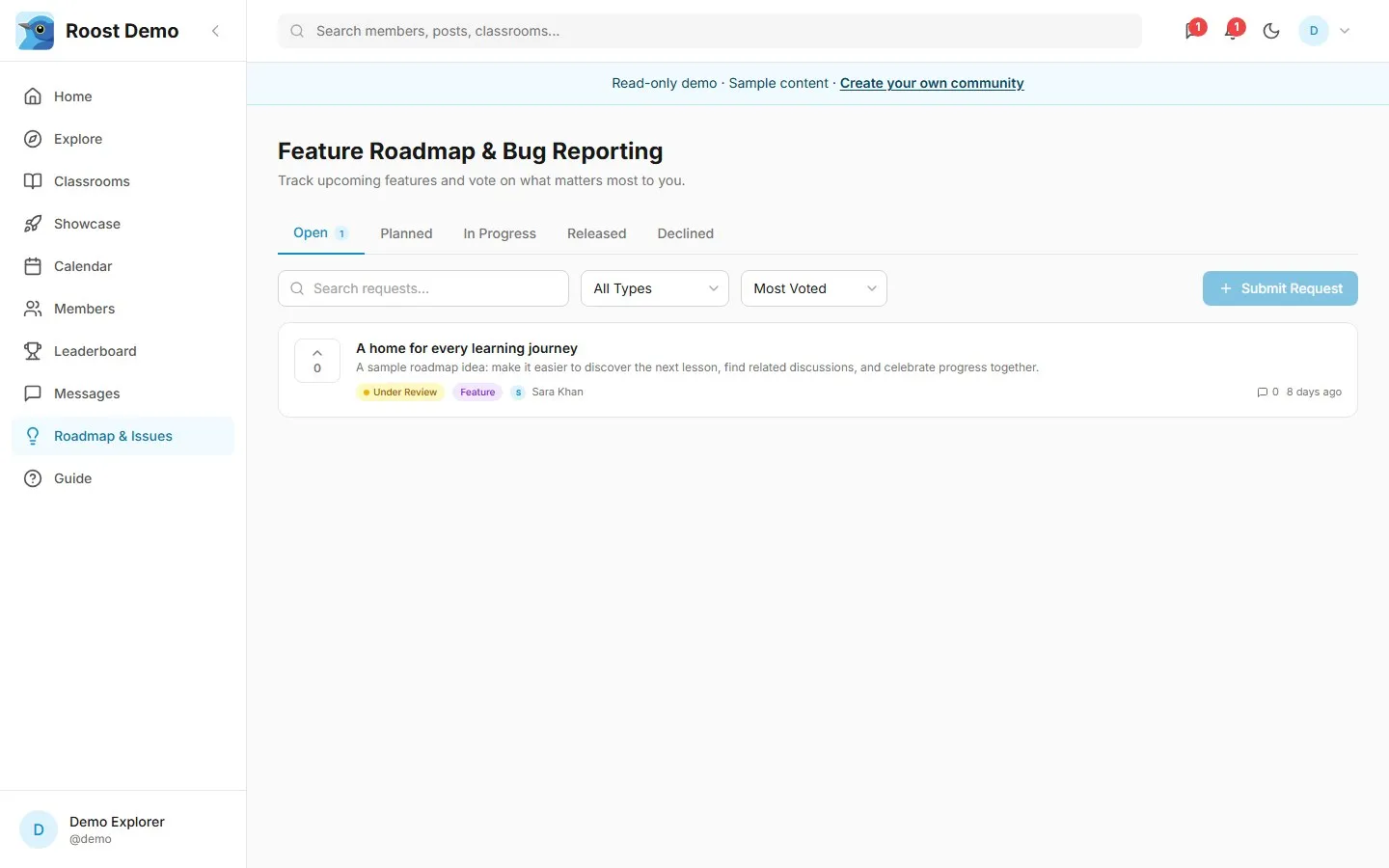
View dark mode: roadmap
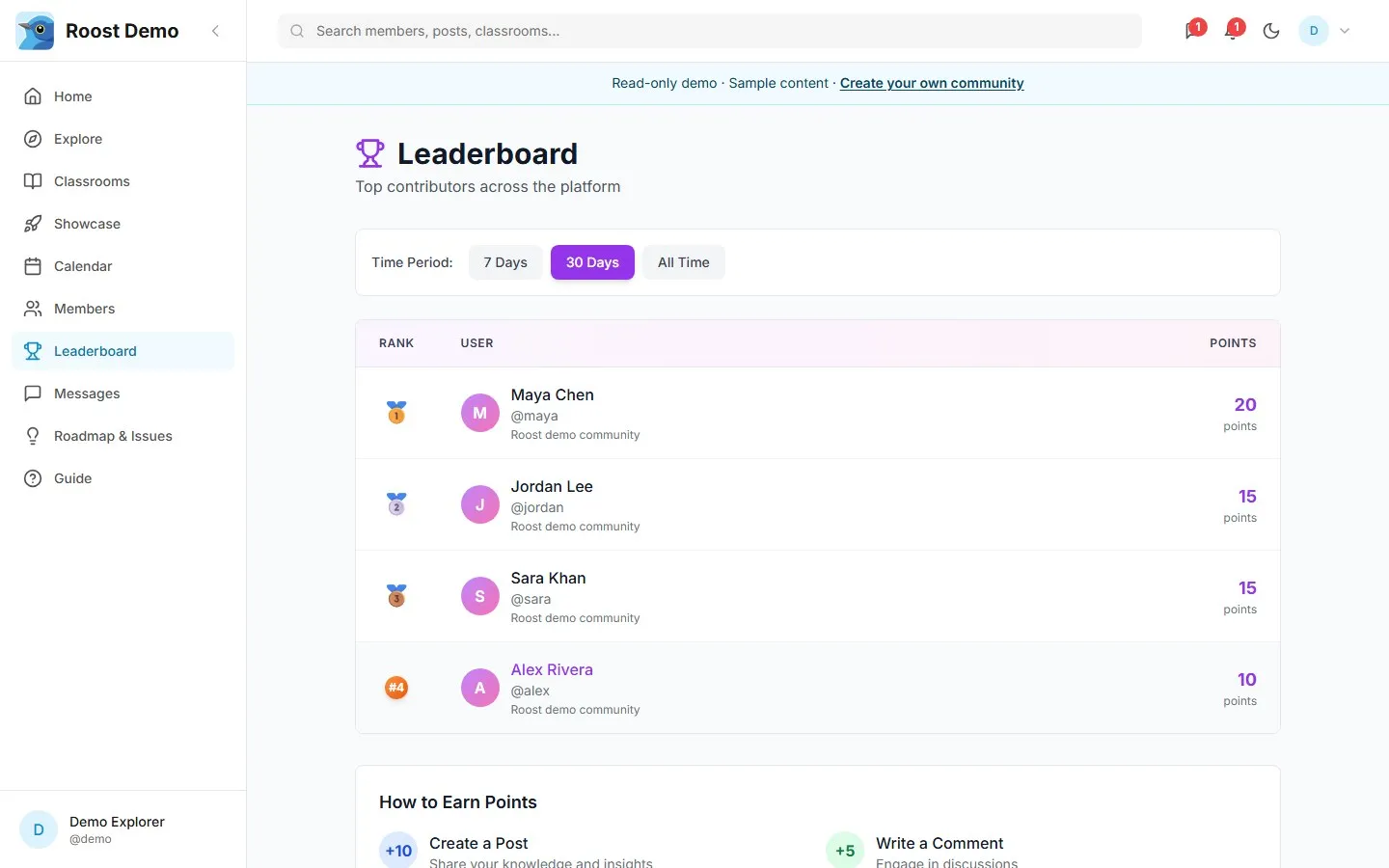
View dark mode: leaderboard
Update your profile and preferences
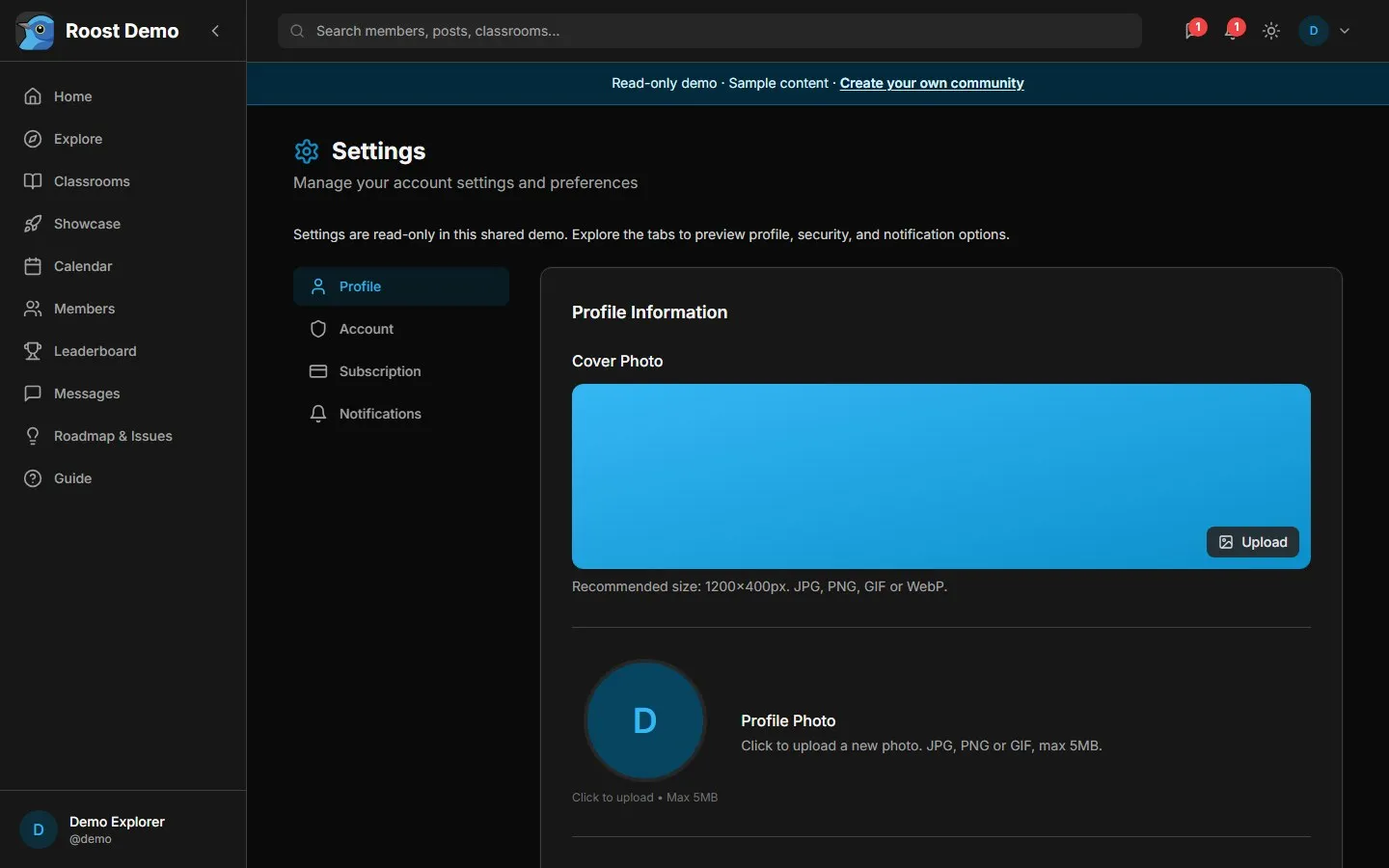
Open the account menu and choose Settings. Update your display name, biography, location, website, and profile images. Other tabs contain account, membership, and notification settings. Save changes before leaving a form.
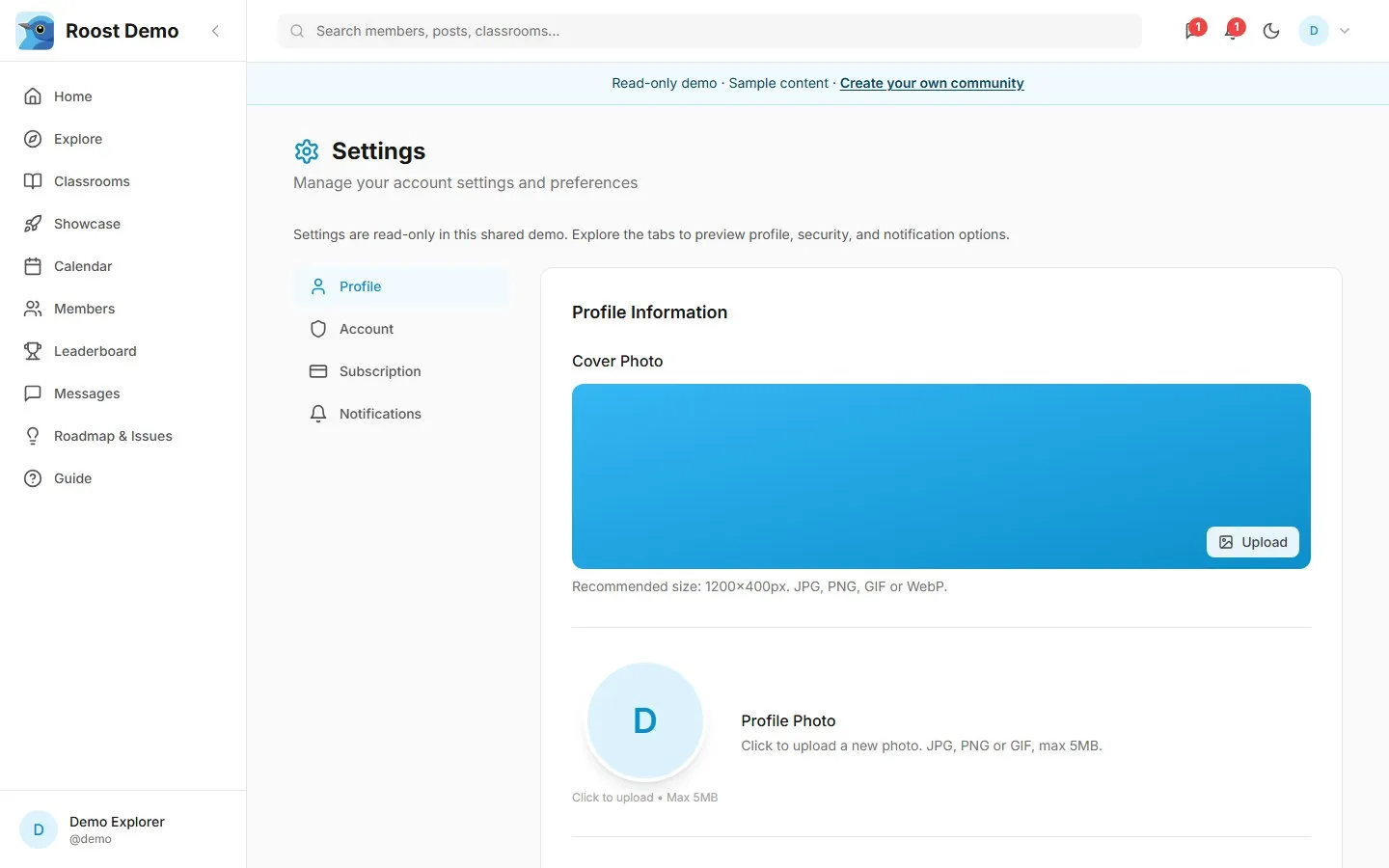
View dark mode: settings
Live Room and Activations appear only when enabled for your account. Live Room is for community broadcasts and chat. Activations lets members request access to products configured by the administrator. Paid membership checkout is optional and requires a separately configured Stripe integration.
Use the sun or moon control in the app header to switch appearances. On the shared demo, settings and content changes remain disabled in both modes.
Community owners should continue with Administration.